
A QR code is simply text drawn as a square pattern, so making one for your business comes down to writing the right text: a web address for your menu, a wa.me link for WhatsApp chat, or a special WIFI: string for your network. Paste that text into a QR generator, download the image, test it with two different phones, and print it at a sensible size.
How a QR code works, in one paragraph
The phone camera reads the black and white modules, decodes the text stored in them, and then decides what to do based on how that text starts. Text starting with https:// opens a browser. Text starting with WIFI: offers to join a network. Text starting with tel: offers to dial. Anything else is usually shown as plain text. Nothing is stored "in" the QR code except that text, which is why a printed code keeps working for as long as the destination it points to keeps working.
What to put in the QR code for each use
1. Website or online menu
Use the full address including the scheme:
https://example.com/menuFor a restaurant menu, link to a mobile-friendly web page rather than a large PDF. A page loads faster on a weak connection, is easier to read on a phone and can be updated without reprinting the code. If you want to know how many people scan the code, add campaign tags to the link first (see the step-by-step section below).
2. WhatsApp chat link
WhatsApp supports click-to-chat links in this form:
https://wa.me/923001234567The number must be in full international format with the country code, but without the plus sign, spaces, dashes or the leading zero of the local number. So the local number 0300-1234567 becomes 923001234567. You can also pre-fill the customer's first message by adding a text parameter, URL-encoded:
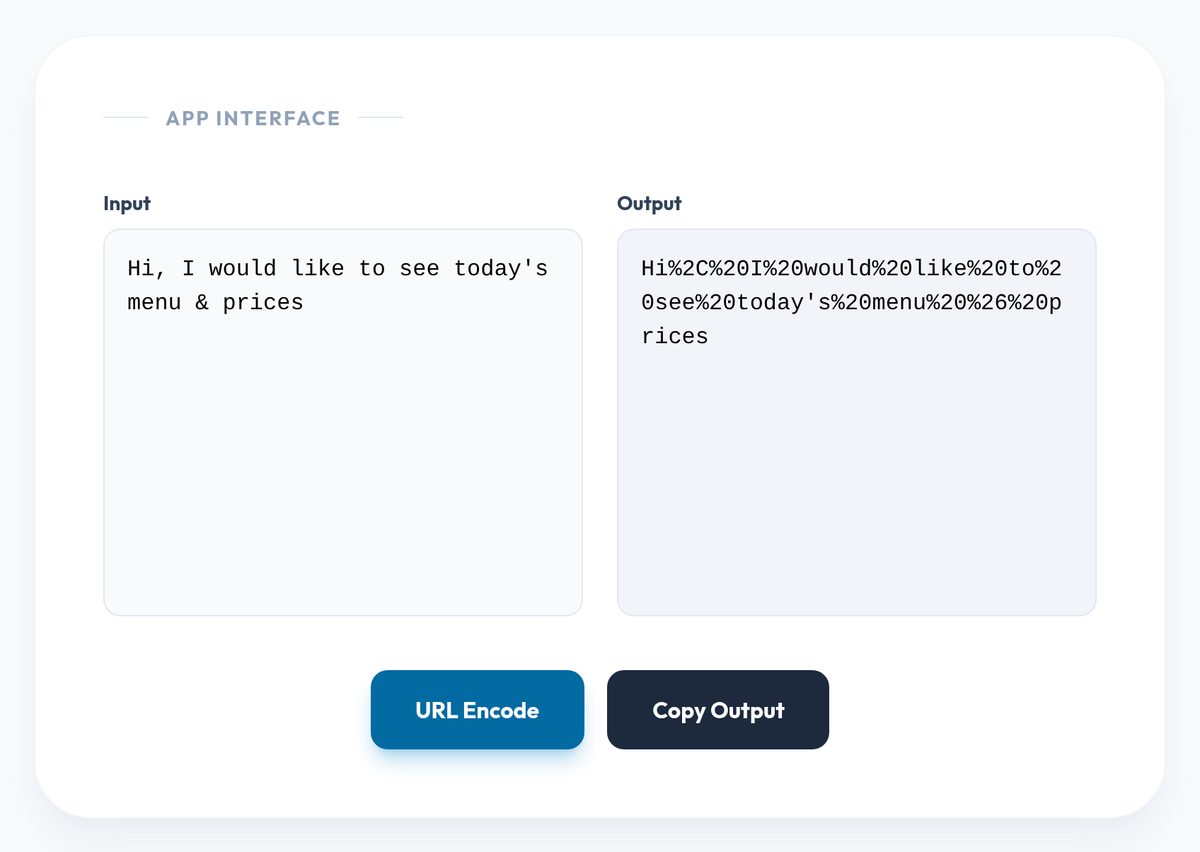
https://wa.me/923001234567?text=Hi%2C%20I%20would%20like%20to%20place%20an%20orderA pre-filled message saves customers typing and tells you which code they scanned if you use different messages on different flyers, for example "Hi, I saw your shop sign" versus "Hi, I saw your leaflet".
3. Wi-Fi network
Phones recognise a standard Wi-Fi format:
WIFI:T:WPA;S:CafeGuest;P:chai2024now;;T:is the security type:WPA(also used for WPA2 and WPA3 networks),WEP, ornopassfor an open network.S:is the network name (SSID), exactly as it appears, including capital letters.P:is the password.- Add
H:true;if the network is hidden. - End with two semicolons.
If the name or password contains a backslash, semicolon, comma, colon or double quote, put a backslash before that character. A password of tea;time is written P:tea\;time;.
4. Phone call, SMS and email
tel:+923001234567
SMSTO:+923001234567:I would like a quote for 50 printed bags
mailto:orders@example.com?subject=Bulk%20order
These are handy on delivery boxes, business cards and shop counters. Keep the message short: every character you add makes the code denser and harder to scan.
Step by step: make your QR code with our tools
- Prepare the text. Decide which of the formats above you need and write it out in a notepad first. For a WhatsApp message, run just the message through the URL Encoder and paste the result after
?text=. - Add tracking if it is a web link. Use the UTM Link Generator to tag the address, for example source
qr, mediumprintand campaigntable_menu. Your analytics will then show visits from the code separately from other traffic. - Shorten long links. A long URL with tracking tags produces a dense pattern with tiny modules. The Tiny URL Generator creates a short TinyURL link that makes a simpler, easier-to-scan code. Keep in mind that the code then depends on that third-party redirect continuing to work.
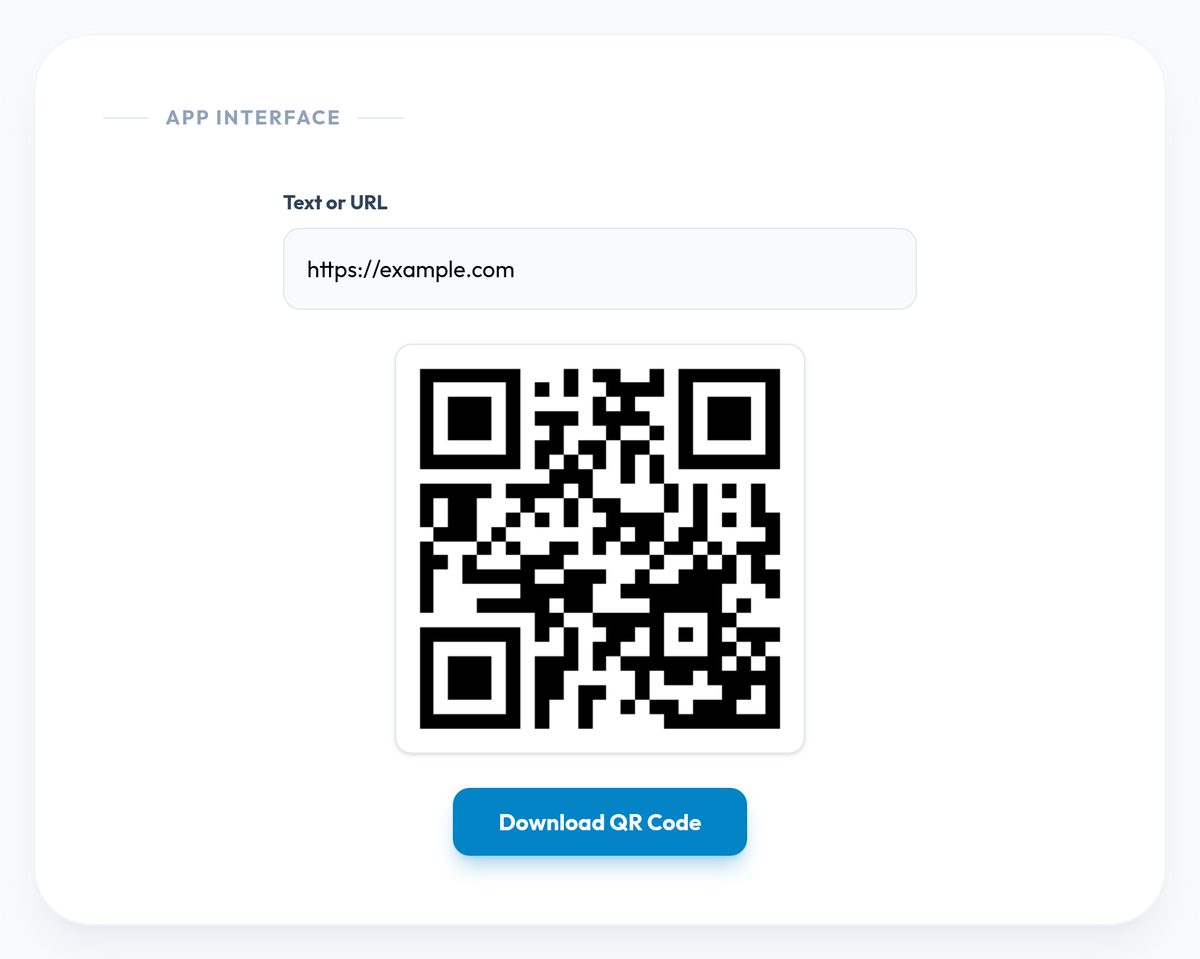
- Generate the code. Open the QR Code Generator and paste your text into the "Text or URL" field. The preview updates as you type.
- Save the image. Click Download QR Code. The 300 by 300 pixel PNG opens in a new tab; right-click it (or long-press on a phone) and save it.
- Test before printing. Scan the saved image with at least two different phones, ideally one Android and one iPhone, using the built-in camera app. Check that the menu opens, the WhatsApp chat starts with the right number, or the phone offers to join the right network.
A note on privacy: the generator draws the image using an external QR image service, which receives the text you enter. That is fine for a public menu link or a WhatsApp number, but for Wi-Fi it means the password leaves your browser. The sensible approach for any business is to create a separate guest network for customers, with its own password, rather than sharing your main network's credentials in a code anyway.
Printing tips that prevent scanning problems
- Size for the distance. A common rule of thumb is that the code's width should be at least one tenth of the scanning distance. A code read from about 30 cm away, such as on a table card, works at around 3 cm wide; a code on a shop window read from 2 metres away needs to be about 20 cm.
- Keep the quiet zone. Leave a clear white margin around the code, roughly four modules wide. Placing it against a busy photo or tight to a border is a frequent cause of failed scans.
- Keep the contrast high. Dark modules on a light background. Inverted codes (light on dark) and pale colours are not read reliably by every phone.
- Scale without blurring. The download is 300 pixels square, which prints sharply at about 2.5 cm at 300 dpi. For a larger print, enlarge it in a design tool with smoothing turned off, so the squares stay crisp, and test the printed proof.
- Avoid glossy reflections. Laminated menus under bright lights can hide part of the code. Matte finishes scan more consistently.
- Tell people what it does. A line such as "Scan for our menu" or "Scan to chat on WhatsApp" next to the code builds trust and improves scans.
Common mistakes
- Linking to a page you will later move. Once printed, the URL is fixed. Point codes at a stable address you control, such as
example.com/menu, and change what that page shows instead of reprinting. - Using a local phone format in wa.me links.
wa.me/03001234567will not open the right chat. Use the international format without the leading zero. - Typos in Wi-Fi details. Network names are case-sensitive. "CafeGuest" and "cafeguest" are different networks.
- Too much text. Long URLs or paragraphs produce dense codes that older phones struggle with. Shorten links and keep messages brief.
- Not testing the final print. Screen previews scan easily; a small, low-contrast print may not. Always test the physical item.
Frequently asked questions
Do QR codes expire?
A standard ("static") QR code like the ones made here contains the text itself, so the code never expires. What can stop working is the destination: a deleted web page, a changed phone number or a disabled short link.
Can I change where a printed QR code points?
Not by changing the code. You can change what happens at the destination, for example by updating the web page at that address or by using a link you can redirect on your own website.
Is it safe to put my Wi-Fi password in a QR code?
Anyone who can scan the code can join the network, which is the point for a customer network. Use a separate guest network for this, never the one your billing computer or till is on.
How do I know how many people scanned my code?
A static code cannot count scans by itself. Add UTM tags to the web link inside it, and your analytics tool will report visits that came from the code.
Reader Thoughts
No Thoughts Yet
Be the first to share your perspective on this topic.